Recurly
Overview
Integrating Recurly with GrowPanel gives you a complete and reliable view of your subscription business. Once connected, GrowPanel imports your full historical Recurly data and keeps everything in sync in real time using webhooks. This ensures that your MRR metrics, financial reporting, customer timelines, and dashboards always reflect the current state of your business.
This guide walks you through each step of the integration, explains what data GrowPanel imports, and shows how that data appears inside your dashboard. Even if you are not familiar with Recurly's admin pages or API settings, you will be able to follow this guide without difficulty.
The overall integration flow looks like this:
- Create a Recurly data source in GrowPanel
- Enter your Recurly subdomain and region
- Create a read only API key in Recurly
- Copy the webhook URL (already shown in GrowPanel after naming your data source)
- Create a webhook in Recurly
- Click Create in GrowPanel to verify the connection and begin import
Once everything is set up, GrowPanel starts importing your entire Recurly history, including customers, subscriptions, plans, transactions, and more.
Before you begin
To complete the integration, you will need:
- Access to your Recurly admin panel
- Permission to create API keys
- Permission to configure webhooks
- Your Recurly subdomain (format explained below)
- Knowledge of whether your Recurly site is hosted in the US or EU region
No engineering work or code is required. Everything is configured through the UI.
Step 1: Open GrowPanel
In your GrowPanel app, navigate to Integrations → Data sources → Add data source → Recurly.
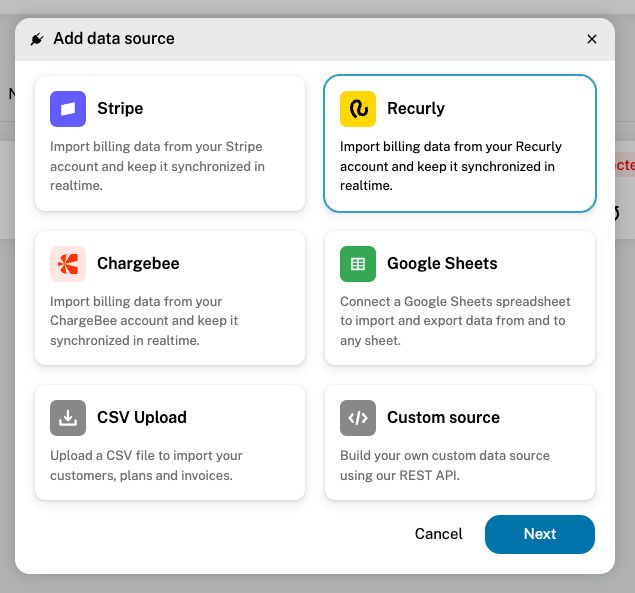
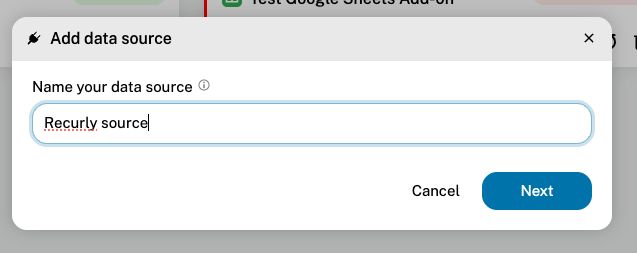
Step 2: Enter a friendly name
Give the data source a name that helps you identify it in GrowPanel (for example, "Recurly - Production" or "Recurly source").
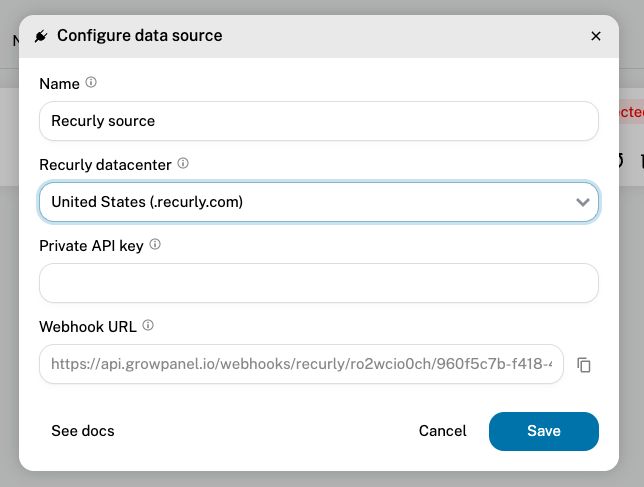
Step 3: Enter your data center location (US or EU)
You need to provide your Recurly data center location.
- If your Recurly dashboard URL is
mycompany.eu.recurly.com, then your data center is locaed in EU. If not, it's in US.
Step 4: Create a read-only API key in Recurly
Next, you need a read-only API key from Recurly, so GrowPanel can fetch your data securely.
In Recurly:
Log into your Recurly account with an admin-level role.
Go to Integrations → API credentials.
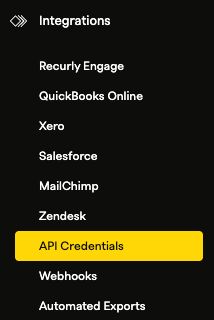
Click Add Private API Key.
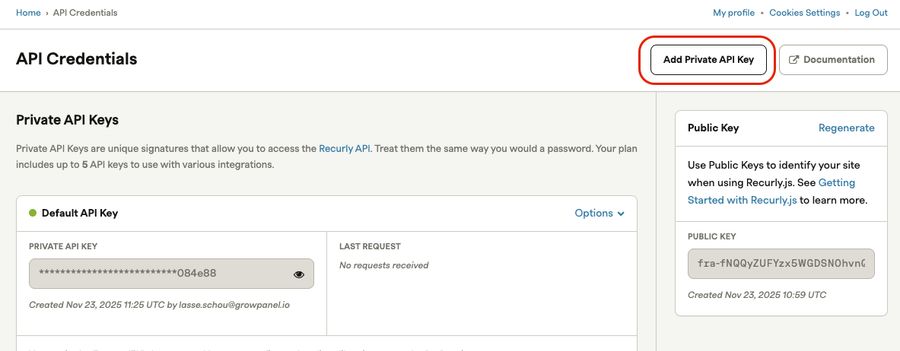
Give the key a meaningful name (for your reference), for instance "GrowPanel key".
Choose Read-only. This gives the key full read-only access to the Recurly account.
Under "Will this key be used with a third-party application", you can choose Other... and write "GrowPanel", although this is optional.
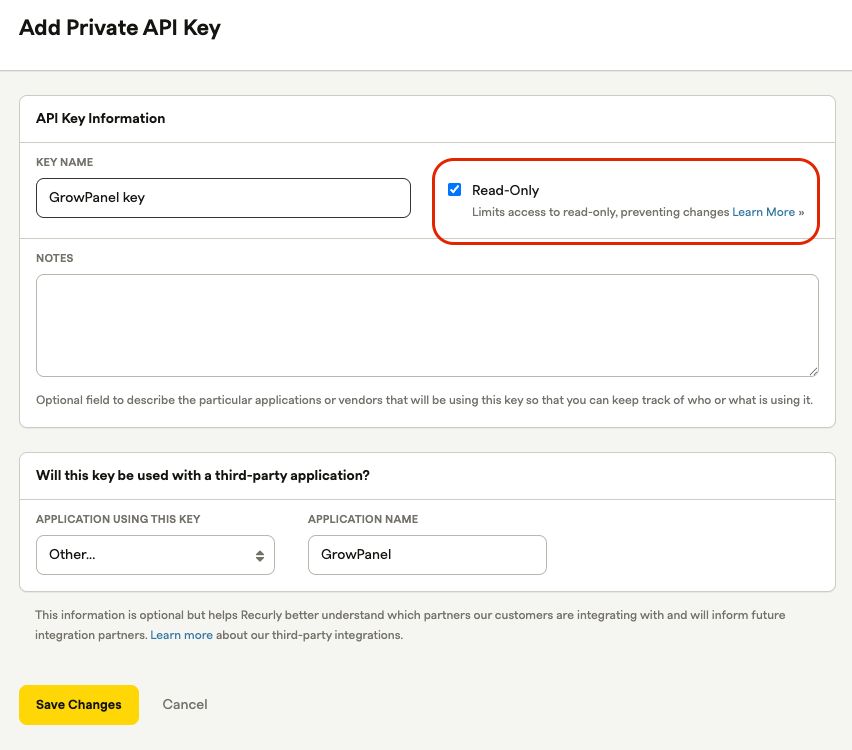
Click Save Changes.
Once generated, copy the key and store it safely; you'll paste it into GrowPanel in the next step.
Step 5: Paste the API key into GrowPanel
Go back to the GrowPanel integration form, and paste the API key you just generated.
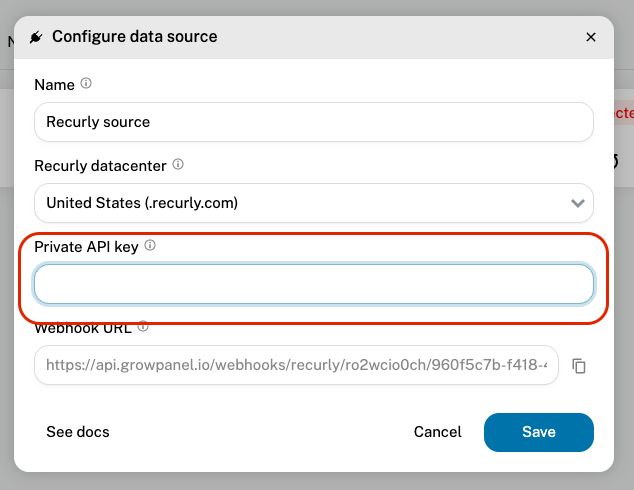
Step 6: Copy the Webhook URL from GrowPanel
Under the "Webhook URL" field in GrowPanel, your webhook URL is displayed. Click the Copy icon to save it to your clipboard. It needs to be pasted into Recurly - see next step.
Step 7: Set up a Webhook in Recurly
Now you need to configure webhooks in Recurly so that real-time events are sent to GrowPanel.
In Recurly:
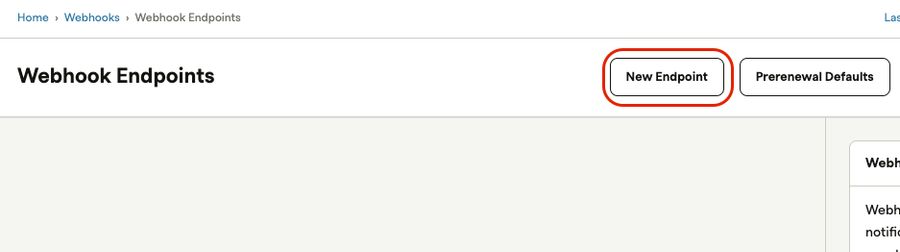
Go to Integrations → Webhooks.
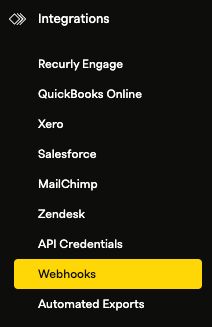
Click New Endpoint.
In the Endpoint Name field, enter something descriptive (e.g. "GrowPanel webhook").
Paste the GrowPanel webhook URL into the "Endpoint URL" field.
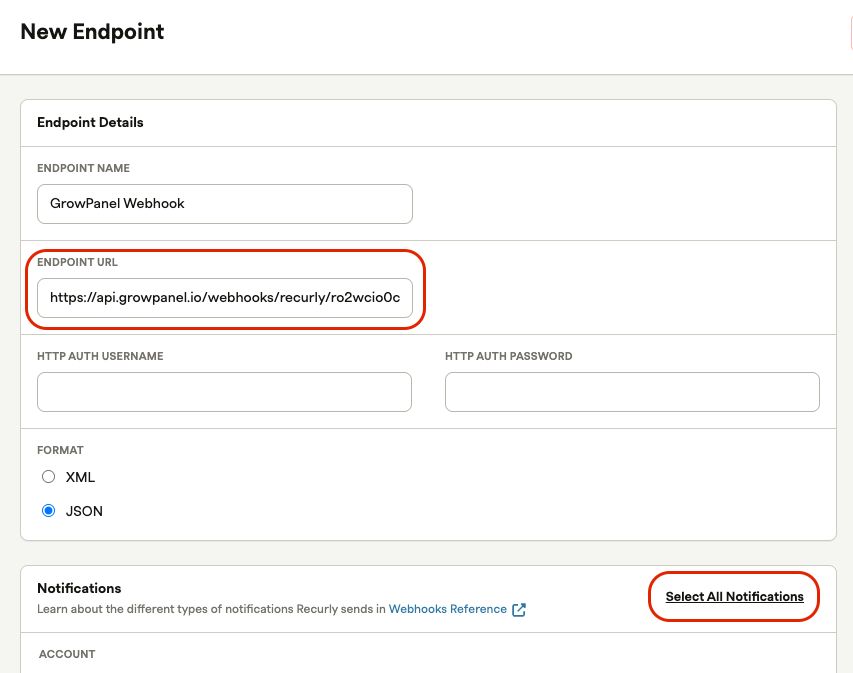
Don't write anything in the HTTP Auth fields.
Make sure the format is JSON
Notifications: We recommend clicking "Select All Notifications".
Click "Create".
Step 8: Verify the connection from GrowPanel
Return to GrowPanel, and click "Save". We now automatically check if the API works. If everything works, your Recurly source begins its initial import.
Step 9: Monitor the import progress
In GrowPanel, you will see an import status screen, showing you the import progress. Depending on how much data you have in Recurly, this initial import could take minutes to hours.
Done: Live sync
After import, GrowPanel will keep listening to Recurly events using the webhook. Future changes - new subscriptions, upgrades, cancellations, payments - will be captured in (near) real time (typically only with a few minutes delay)
What data GrowPanel imports from Recurly
When you set up Recurly with GrowPanel, here's the full set of data that GrowPanel will import and maintain. This gives you a rich, analytics-ready model of your subscription business.
Customers / Accounts
- All customer records (including trialing, active, canceled)
- Custom fields stored on customer records in Recurly. They will be exposed as custom variables in GrowPanel.
- Lead / trial creation dates (if Recurly tracks when a customer was created and possibly associated with a trial)
Subscriptions
- Subscription objects, including status (active, canceled, non-renewing, paused, etc.)
- Subscription start, end, cancellation dates
- Subscription plan data, including add-ons, addons quantity, tiered pricing, etc.
- Plan catalog information (plans, add-ons, prices)
- Plan groups, if you use grouping in your billing setup
MRR movements / Subscription lifecycle
- Upgrades and downgrades (changing plan)
- Renewals
- Cancellations and reactivations
- Trial starts and trial-to-paid transitions
- Prorations, if Recurly emits prorated invoice line items
Invoices and Transactions
- Invoice creation events
- Invoice line items (subscription lines, add-ons, usage, one-time charges)
- Payments (when invoices are paid)
- Refunds and credit notes
- Taxes if Recurly tracks them separately (metadata)
Discounts / Coupons
- Coupons or discount codes applied to subscriptions
- Coupon usage history
- Credit note adjustments that may come from coupon credits
What to expect in GrowPanel after import
Once the import has run and GrowPanel is in sync, here is what your GrowPanel UI will show and how you can interact with the data:
Dashboard & Key Metrics
- Monthly Recurring Revenue (MRR), broken down by plan, cohort, or segment
- Number of active customers, churned customers, reactivated customers
- Trial-to-paid conversion rate
- Revenue movements over time (expansion, contraction, churn)
- All subscription reports such as ARR, ARPA, ASP, LTV, churn, etc.
Customer Analytics
- A full list of customers imported from Recurly
- Each customer's subscription history: when they joined, what plan(s) they had, upgrades or downgrades, cancellations
- MRR history for individual customers
- Metadata on customers, such as custom attributes from Recurly
Subscription / Plan Growth
- Performance of different plans and plan groups
- Add-on usage trends
- Growth or contraction in each plan category
Transaction & Cash Flow Data
- Invoice volume and value over time
- Refunds / credit notes volume
- Payment success rates
MRR Movements Table
- Detailed log of MRR-adjusting events: upgrades, downgrades, churn, reactivations, trials
- Ability to filter or segment based on movement type or plan
Best practices & tips
Here are a few recommendations and things to watch out for when using the Recurly integration with GrowPanel.
Use a dedicated API key for GrowPanel.
Don't reuse an API key intended for other systems. Create one just for GrowPanel, so you can rotate or revoke it safely without impacting other integrations.Monitor import progress.
If your Recurly account has a lot of historical data (many customers, invoices, credit notes), the import will take longer. Use the GrowPanel UI to monitor it.Plan for API key rotation.
Periodically rotate your API key (every 3–6 months is a good practice), and update GrowPanel with the new key before deactivating the old one.Organize your plan groups
GrowPanel imports your product catalogue automatically, and uses the plans as "Plan groups" and the prices inside each plan as "plans". This means that we don't import the Product families automatically. For this reason it's a good idea to navigate to Settings > Plan groups in GrowPanel and organize the plans and products in a way that makes most sense for your reporting.
Common pitfalls & troubleshooting
Here are some issues you might run into, and how to address them.
| Problem | What might be wrong | How to fix it |
|---|---|---|
| Webhook test fails | Wrong URL, blocked by firewall, or incorrect API version | Double-check the webhook URL in GrowPanel. Ensure Recurly is set to send Version 2. Test network connectivity. |
| API key rejected / invalid | Key type or permissions are wrong | Make sure the API key you created is read-only and has the required scopes. Re-generate if needed. |
| Missing historical data | Some resources weren't accessible by the API key | Verify that the API key has access to all required endpoints: customers, subscriptions, invoices, credit notes, plan catalog. |
| Duplicate or incorrect MRR events | Webhook misconfiguration, duplicate events, or missing pruning | Review which events you selected in Recurly. Confirm you are not sending duplicate webhook endpoints or multiple versions. |
| Sync stopped working | API key was disabled, or webhook URL changed | Check in Recurly if your API key is still active. Ensure the webhook endpoint in Recurly matches the one in GrowPanel. Regenerate if needed. |
| Key security concern | API key exposed or shared too broadly | Rotate the API key, restrict its permissions, and store it securely (e.g. in secrets manager or encrypted vault). |
Summary
By connecting Recurly to GrowPanel, you gain deep visibility into your subscription business: customers, subscriptions, invoice history, MRR movements, and more. The integration uses a read-only API key and a webhook, so your data is imported securely and kept current in real time.
Once set up, GrowPanel surfaces key metrics across customers, subscription plans, revenue flows, and lifecycle events – giving you the insights you need to understand growth, churn, and expansion.
If you run into issues or need help interpreting your data in GrowPanel, our support team is ready to assist.
